Google BigQuery Insights
Connect Cardinal Desktop Application to Google BigQuery Insights for query performance monitoring.
Overview
Google BigQuery Insights provides detailed query performance metrics and insights for your BigQuery workloads. With the BigQuery Insights connector, your AI agents can:
- Get Query Insights from Google BigQuery
- Retrieve Performance Metrics for query analysis
- Monitor query execution and performance trends
- Analyze query costs and optimization opportunities
- Track query patterns across your organization
Connection Details
| Field | Description |
|---|---|
| Project | Browse and select a Google Cloud project from the grid |
| Authentication | Google OAuth 2.0 |
Prerequisites
- A Google Cloud project with BigQuery enabled
- A Google account with access to your BigQuery project
- BigQuery API enabled
- Query Insights data available in your project
Setup Wizard
Validate credentials either through ADC or Oauth.
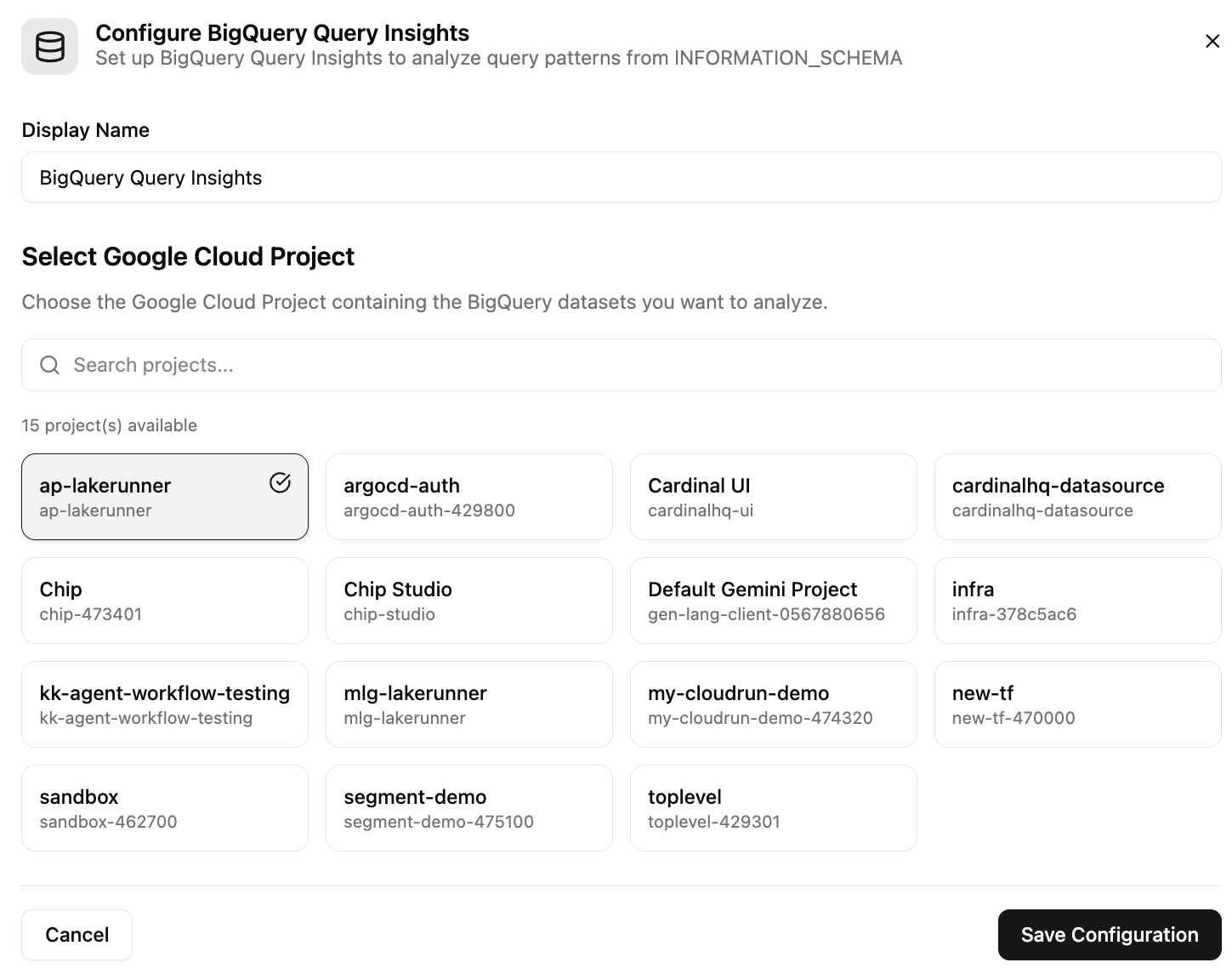
Your AI agent can now query BigQuery Insights and analyze query performance.
Understand the assets and product features →
Reach out to support@cardinalhq.io for support or to ask questions not answered in our documentation.